Landscape Management
The landscape view is utilized for maintaining the technical infrastructure. Environment data, including connection configurations such as database connections, can be viewed, maintained, exported, and imported based on specific scenarios.
Exporting a Landscape
You can download a snapshot of the current landscape of your Orchestra runtime by using the "Download" button in the Landscape view. Depending on your current selection, you will create a landscape snapshot of:
- The whole Orchestra runtime (if no scenario is selected in the Landscape view).
- A single scenario (if a specific scenario is selected before downloading).
- A single entry (if you use an entry's context menu or the button in the entry details dialog).
The downloaded file will include the Orchestra node name, and optionally the scenario and entry identifier, which helps to relate it to a specific entry. For example, the file LOCAL_ORC_f687688f-13de-42ed-8b58-d42b8bb3c206_24.landscape.xml refers to landscape entry 24 of scenario f687688f-13de-42ed-8b58-d42b8bb3c206 on Orchestra node LOCAL_ORC. The filename is significant for exporting the landscape.
Importing a Landscape
To import a previously created landscape file into your Orchestra runtime, use the "Upload" button in the Landscape view. You do not need to navigate to a specific scenario or landscape entry to import its landscape, as the import mechanism will automatically determine the targets based on the file content.
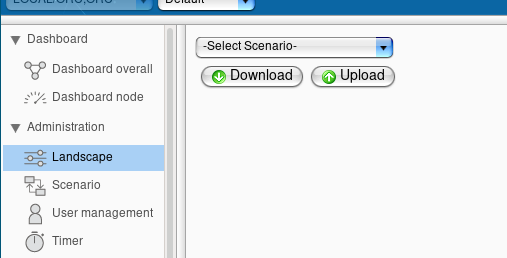
A dialog will open, allowing you to select a landscape file.
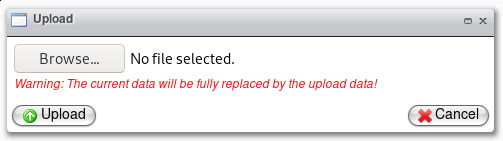
Click "Browse..." to select a file from your local machine. Clicking "Upload" will initiate the upload and import of the chosen landscape file.
Be aware that the current data will be overwritten with the contents of the uploaded file!